5-Minute Note-Taking Setup: Capture-First for Pros
Pin one Inbox note, add a one-tap shortcut, three headers, and set a daily 5-minute sweep to instantly capture thoughts and convert to tasks or references ASAP.
The Capture Friction Problem That Kills Every System
Every note-taking system fails at the same place, and it isn't the folder structure or the tag taxonomy. It's the first five seconds. You have a thought mid-meeting, on a walk, or standing in line for coffee, and before you can write a word the app asks you to pick a notebook, choose a template, or assign a tag. By the time you've made those decisions, the thought is gone. Not the note, the momentum behind it.
The pattern is consistent enough to plan around: any notes app that forces a choice before you can type tends to get abandoned inside a month. People don't quit because the app is bad. They quit because capture became work, and work under load loses to the path of least resistance, which is doing nothing. One recurring example: professionals who default to emailing every idea to their own inbox, for reasons other than email’s quality as a note tool, because it's the only surface with zero setup between the thought and the record.
We saw a version of this in a community thread where a user described doing exactly that, emailing themselves every idea. That post got no upvotes and no replies, so we won't pretend it's proof of anything. But it lines up with what we keep hearing: the tool people actually reach for in the moment is whichever one demands the least before it accepts input.
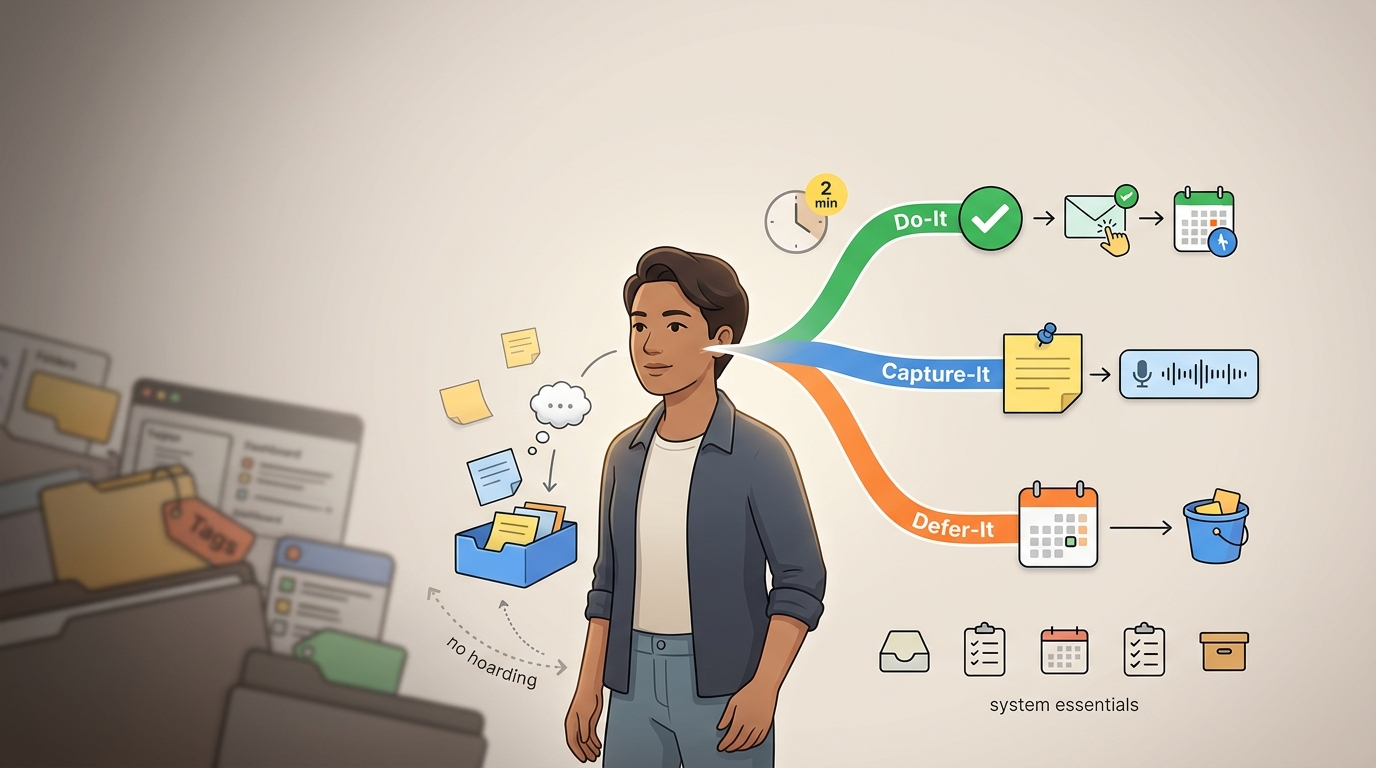
The principle we build around is capture-first: get the thought down in seconds now, and clarify and route it later, on your schedule. This is the inverse of organization-first systems that make you decide where something belongs before you're allowed to write it. Organization-first assumes you know what a note is the moment you have it. You usually don't.
For busy professionals the stakes are specific. Every interruption to open an app, hunt for a folder, or switch contexts costs a slice of attention you were spending on the actual work. A capture-first setup exists to preserve that momentum and cut the app-switching that fragments a workday. What follows is the setup, in five steps, that you can finish before your coffee gets cold.
The 5-Minute Setup, Step by Step
Step 1: Pick the app already on your phone
Start with whatever is preinstalled: Apple Notes on iPhone, Google Keep on Android, or Simplenote if you want one account across every device (Storyflow). The reason is blunt. The best capture tool is the one already open and logged in rather than the one you spend an afternoon researching. You already have a note-taking app; use it.
Choose something else only when you have a concrete need the default can't meet:
- Cross-platform sync across iPhone, Android, Windows, and Linux, which points you toward Simplenote.
- Markdown, if you want lightweight formatting that stays portable as plain text.
- Offline-first behavior, so capture works with no signal.
- No account required, if you'd rather not sign up for anything to write a line.
Do not spend an hour comparing features. The entire setup depends on one note existing, not on which app holds it. Pick, and move on.
Step 2: Create one inbox note and pin it
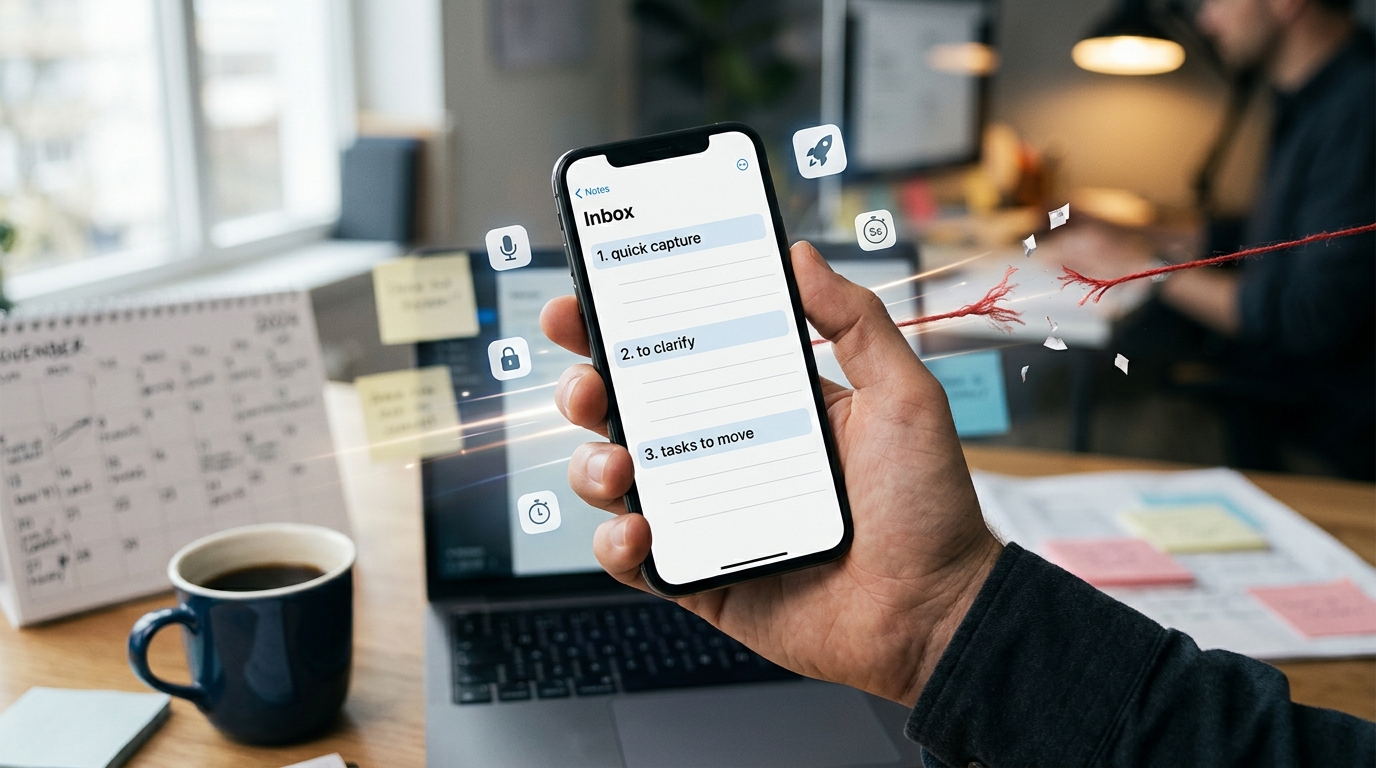
Make a single note, title it Inbox, and pin it to the top of your list so it opens in one tap (NIH / PMC). This note is your only landing zone. Everything goes here first, no matter what it is: a raw idea, a line from a meeting, a task, a reminder, a number you need to remember for ten minutes. You are not sorting yet. You are catching.
The value of one pinned note is that it removes the last decision standing between you and the keyboard. There is no "which note does this belong in," because the answer is always the same.
[Screenshot placeholder: the pinned
Inboxnote sitting at the top of the note list, opened in a single tap.]
Step 3: Add a one-tap capture shortcut
Build the fastest possible path to that inbox note so opening it never takes more than a tap or a word. Pick the one that fits how you move through your day:
- A Lock Screen widget that jumps straight into the inbox note.
- A home screen shortcut or quick-add tile you can hit without unlocking anything else.
- Voice dictation, which is the fastest of all, because your brain thinks faster than your hands type (Stanford HCI). Dictating a line while walking captures the thought before the friction of typing can lose it.
If opening the app is still too slow in some moment, keep an email-to-self fallback. Send the line to your own address and drop it into the inbox during your review. It's inelegant, but it beats losing the thought.
[Screenshot placeholder: a Lock Screen widget wired directly to the
Inboxnote, capturing a line without unlocking the phone.]
Step 4: Add three lightweight sections inside the inbox, not folders
Inside that single note, add three headers and nothing more:
Quick capturefor raw lines as they land.To clarifyfor things that need a second look before they mean anything.Tasks to movefor anything that's clearly an action.
Sections beat folders because a section requires no decision at capture time (American Psychological Association). When something is genuinely urgent you drop it under the right header; when you're moving fast you dump it under quick capture and sort it later. Either way you never leave the note.
Skip tags, nested folders, and color systems during setup. They feel productive and they reintroduce the exact friction this whole approach removes. You can add structure later if you ever prove you need it. You almost never will.
Step 5: Set one daily review reminder and decide where committed tasks go
Set a single recurring reminder for the end of your workday. That's the trigger for a short sweep through the inbox, which we'll cover in detail below. One reminder, one time, every day.
Before you close the setup, make one decision you'll otherwise be tempted to make mid-capture, which is fatal: where do committed tasks go? Pick your single task destination now, whether that's a dedicated task manager like Todoist or Microsoft To Do, or the reminders app already on your phone. The point is that when you find an action in your notes during the sweep, you already know its address. You never stop to decide, because deciding is what breaks the flow.
Here's the whole setup in one view. The per-step times below are illustrative, unmeasured the total lands around five minutes:
| Step | What you do |
|---|---|
| 1 | Pick the app already on your phone |
| 2 | Create one note titled Inbox and pin it |
| 3 | Add a one-tap capture shortcut or widget |
| 4 | Add three headers inside the note |
| 5 | Set one daily reminder and pick your task destination |
Total: about five minutes, and you never open a settings screen again.
Best Minimal Note Apps for a Capture-First Setup
Best by platform and use case
The default is whatever's already installed, but a few picks map cleanly to specific situations:
- iPhone: Apple Notes. Already on the device, pins to the top, and captures in one tap from the Lock Screen (Tech Insider). Nothing to install.
- Android, free and local-first: Notally. A roughly 1.2 MB footprint, no account required, and per its 2024 errata it can record audio and attach images. The tradeoff is no Markdown.
- Cross-platform including Windows and Linux: Simplenote. Stated as completely free, with real-time sync and Markdown support, so the same inbox follows you across every machine.
- Android with reminders and voice: EasyNotes. Handles reminders and voice input, with the honest caveats that it carries ads and in-app purchases and is Android-only.
If you want the capture inbox and the task destination in one place instead of two apps, Yaranga follows the same no-folder principle by keeping notes and tasks connected, so a captured line can become a task without leaving the note. It's an optional integrated alternative to the note-app-plus-task-manager split described in Step 5, optional for this setup.
Honest tradeoff matrix
Minimal apps are built for capture, so they trade archive-building features for speed. What you gain is capture speed; what you give up varies by app. Notally, for instance, is genuinely local-first, requires no account, and exports cleanly, but has no Markdown and weaker sync. Simplenote gets you cross-platform sync and Markdown but runs on an account. Here's the shape of the tradeoff across the picks:
| App | Capture speed | Local-first | No account | Export formats | Sync | Markdown | Linking |
|---|---|---|---|---|---|---|---|
| Apple Notes | High | Device-synced | No (Apple ID) | Limited | iCloud, Apple-only | Partial | Weak |
| Notally | High | Yes | Yes | PDF, JSON | None / manual | No | None |
| Simplenote | High | No | No (account) | Plain text, Markdown | Real-time, cross-platform | Yes | Weak |
| EasyNotes | High | Yes | Yes | Limited | Android-only | No | Weak |
Notally is the concrete example of the minimal pattern: free with an optional Patreon, a 7/10 review score and a 4.4 Play Store rating, and export to PDF and JSON so nothing is trapped. You get speed and portability, not a linking engine.
There's a clear line where this setup stops being the right tool. If you want a second brain, a digital garden of interlinked notes, or a place to store heavy attachments and long-form documentation, a minimal capture app is the wrong instrument and you'll fight it. That's a real need; it just isn't this one.
Before you commit to any app, check its export options first. If you can't get your notes out as plain text, Markdown, PDF, or JSON, you're renting your own words (Om Godse). And when you migrate, keep your old account as an archive rather than deleting it, so a botched export doesn't cost you history.
The Copyable Capture-First Template
Paste this into a single note and you're done:
# Inbox

## Quick capture
-

## To clarify later
-

## Tasks to move
-

## Reference notes to file
-

## Waiting for / follow-up
-
In Apple Notes, Google Keep, Simplenote, or any of the picks above, create a new note, paste the block, and pin it. That's the entire structure. The three capture headers from the setup carry the daily load; the reference and waiting-for sections give you somewhere to park things that aren't actions but shouldn't disappear.
Keep this as one note. Not five notes, not five folders, one. The moment you split it into separate notes you've recreated the "which one does this go in" decision that the single inbox exists to kill.
How to Process Captured Notes Without Overthinking
The daily sweep runs in a couple of minutes or less. That's the whole time budget, and it holds because you're routing lines, not rewriting them. If a sweep is taking fifteen minutes, you're editing when you should be moving.
Go line by line through the inbox and make one of five routing decisions, in this order:
- Delete it, if it turned out to be noise. Most captured lines don't survive contact with a clear head, and that's fine.
- Turn it into a task, if it's a real next action, and send it to the task destination you picked in Step 5.
- Save it as reference, if it's information you'll want later but nothing to do about now.
- Schedule it to the calendar, if it has a date, time, and duration.
- Delegate it or mark it waiting-for, if it's someone else's move and you just need to track it.
The rule that keeps this sane: only clarified next actions enter the task manager. A next action is something you could physically start, phrased as a verb (Nerd Productivity). Underdeveloped thoughts, half-ideas, and "look into this someday" lines stay in the inbox or move to a reference note. They are not tasks.
This is where most systems quietly rot. GTD practitioners warn about it directly, that if you dump every vague thought into your task list, the list becomes a graveyard you stop trusting, and once you stop trusting it you stop opening it. A task manager stuffed with non-tasks is worse than no task manager, because it burns the one thing the system runs on, which is your willingness to look at it.
When something isn't ready to become an action, leave it in incubation. Let it sit under "to clarify" or in a reference note until it either sharpens into a next action or fades enough to delete. Forcing an unformed idea into a task doesn't advance it; it just clutters the place where your real commitments live.
Notes App vs Task Manager vs Calendar: What Goes Where
Three tools, three jobs, and the friction comes from putting things in the wrong one. Here's the map:
| What you have | Where it goes |
|---|---|
| A quick thought or raw idea | Note app (the inbox) |
| A committed next action | Task manager |
| A dated, timed event | Calendar |
| Project documentation | Notes or a docs tool |
| A team process or handoff | A workflow tool |
Underneath the table is a four-item taxonomy worth holding in your head: quick notes are raw capture, tasks are clarified actions, calendar entries are fixed events, and files and reference notes are stored separately from all of it. Almost everything you capture is one of those four things, and knowing which one tells you where it lives.
The calendar has a strict boundary. Only put something there if it has a date, a time, and a duration (John Rampton). Resist the urge to time-block every task onto the calendar, because the first time a meeting runs long or a task slips, your whole day of blocks needs rescheduling, and rescheduling is friction you'll eventually abandon. Tasks live in the task manager with a due date at most; the calendar is for things that genuinely happen at a fixed hour.
The note app stays your single capture inbox, catching everything without judgment, and the task manager stays intentional, holding only actions you've actually committed to. Keep that separation clean and neither tool bloats.
For people already living in the Microsoft stack, there's an integrated version of this. OneNote lets you turn a note line into a To Do task directly, and calendar integration surfaces your meetings alongside your notes, so the capture-to-action loop happens without leaving the ecosystem (Microsoft Support). Same principle, fewer moving parts.
Setup Examples for Real Work Moments
A meeting. Open the inbox and take one running entry during the meeting, all of it under quick capture. Do not try to split follow-ups into tasks live; that pulls your attention out of the room. During the end-of-day sweep, walk the entry and lift each follow-up into the task manager as a clear action.
A client call. Capture the important points verbatim and fast, because you'll paraphrase wrong if you wait. Afterward, route the decisions and stated facts into a reference note so you have a record, and send each agreed action to the task manager with a real next step attached.
A random idea between tasks. One line under quick capture, no formatting, no header choice, back to work. If it matters, like a follow-up you owe someone, the sweep will catch it; if it doesn't, you deleted it in two seconds. It starts as a captured line, and during the sweep it becomes a task phrased as an action, "email Sarah the revised quote," not "quote," so future-you knows exactly what to do without reconstructing the context.
Voice dictation on a commute. Dictate straight into the inbox while you walk or ride, since your voice is faster than your thumbs and hands-free is often the only safe option. Leave it as text in quick capture and process it later at your desk. The commute is for catching instead of sorting.
[Screenshot placeholder: an end-of-day inbox after a sweep, showing a meeting entry split into two tasks in the task manager and the reference lines filed, leaving quick capture empty.]
Common Mistakes That Break the System
- Building folders or a tag taxonomy before you've captured anything. When you organize while capturing, you're organizing an empty room, even though structure should emerge from real notes, never precede them. Every second spent deciding where a thought belongs, in the moment, reintroduces the exact friction this setup removes and eventually kills the habit.
- Turning every note into a task. A task list padded with vague someday-items stops being trustworthy, and an untrusted list gets ignored.
- App-hopping instead of using the one already on your phone. The tool you switch to next week won't fix a capture habit; only capturing fixes a capture habit.
- Treating the notes app as a project manager or a second brain. It's a catcher's mitt, not a filing cabinet, and asking it to be both makes it good at neither.
Where Most People Stall Next: The 2-Minute Sweep
The five-minute setup is not where systems die. The sweep is, because it's the only part that has to run every single day. Skip it for three days and the inbox becomes a backlog no one wants to touch.
So make one commitment today: attach the review reminder to a trigger that already fires every day. Hook it to your end-of-day shutdown, or the moment you close the laptop, or the start of your commute home. A reminder floating in the calendar gets swiped away; a reminder tied to something you already do without thinking gets done.
If the reminder gets ignored twice in one week, move it to a stronger trigger: laptop shutdown, commute start, or your final calendar review of the day. Don't add features to compensate for a weak trigger; fix the trigger.
Watch one signal. If by the end of the week your inbox holds more than roughly a screen of unprocessed lines, the sweep isn't running, and no amount of app-switching or new headers will save you. Fix the trigger before you touch anything else, because the trigger is the only part that was ever going to fail.
Ready to conquer your chaos?
Join others who have simplified their tasks and notes with Yaranga.
Get Started for Free