PKM Tools Explained: Faster Capture, Search & Action
Diagnose your info leaks, test a PKM with a short pilot, then build a capture-to-action routine that gives faster capture, searchable notes, and real follow-up.

What PKM Stands For and What This Guide Means By It
PKM stands for Personal Knowledge Management, and a PKM tool is the software that supports it. That is the whole answer in one sentence. The rest of this guide unpacks what that software actually does for your workday and how to tell whether it earns a place in it.
Because those three letters travel through a lot of unrelated corners of the internet, a quick clarification helps. If you searched for PKM and landed here, we are not talking about the belt-fed machine gun, the shorthand some people use for Pokémon, or any of the chat abbreviations that share the acronym. In this context, PKM is a category of productivity software, alongside notes apps, task managers, and knowledge bases.
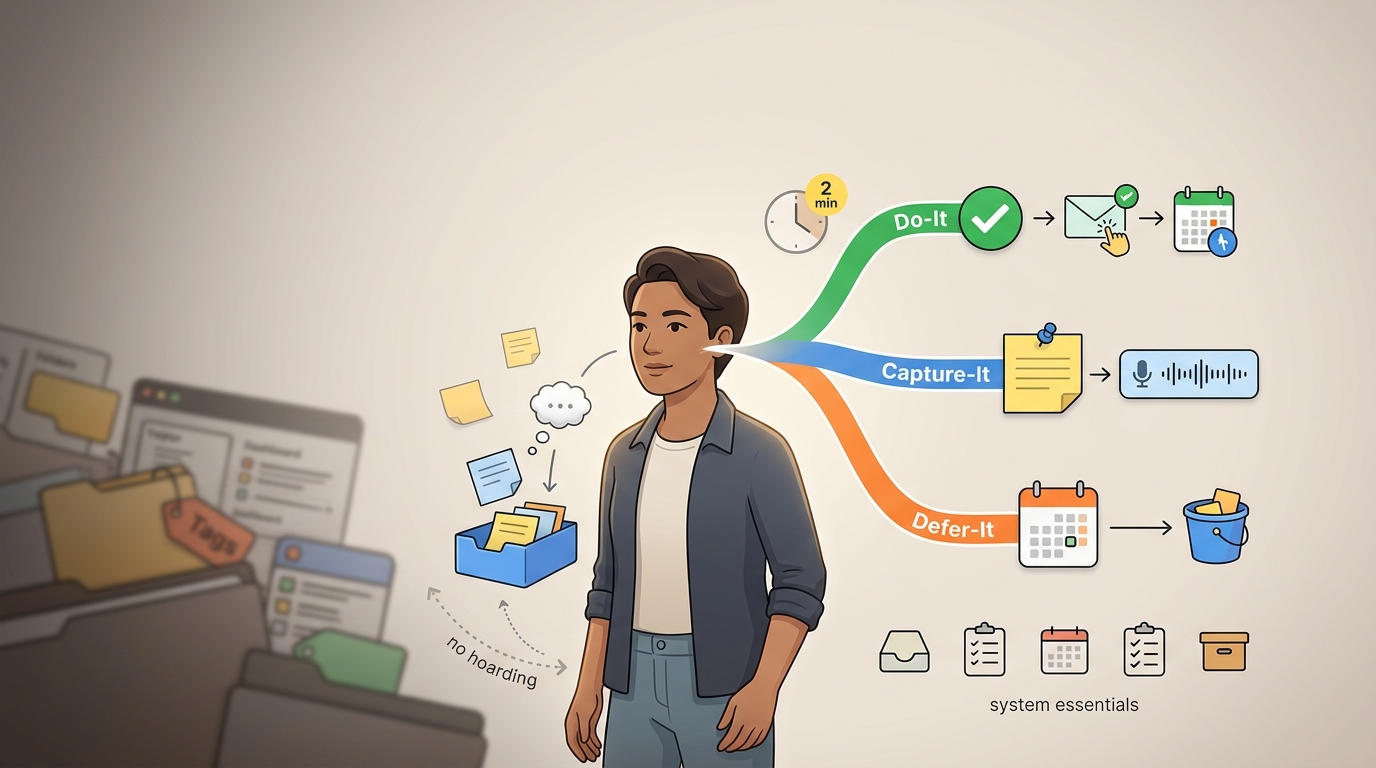
Throughout this guide, we use a deliberately plain working definition. A PKM tool helps you do four things with the information that flows through your work: capture it quickly, organize it with as little friction as possible, retrieve it the moment you need it, and turn it into action instead of leaving it to rot in a notes graveyard. Hold onto that four-part definition, because every step below maps back to it.
Step 1: Understand the Difference Between a PKM Tool and a PKM System
The single most useful distinction to grasp first is that the tool and the system are two separate things (Cheong & Tsui). The tool is the software you install, the app that sits on your phone or the window that opens on your desktop. The system is everything wrapped around it, which means your habits for capturing thoughts, your routines for processing them, and your review rhythm for keeping the whole thing current. The software is the instrument, and the system is how you play it. Consider a gym membership. Two people sign up at the same gym, with access to the same machines, the same trainers, and the same opening hours. One transforms over six months, and the other quietly stops going by February. The equipment was identical, so the difference lived entirely in the routine each person built around it: when they showed up, what they did, whether they came back. A PKM tool works the same way. The same app that becomes indispensable for one professional gathers digital dust for another, because the app was never the deciding factor.
This is where a common and expensive misconception trips people up. Buying the app does not solve the information problem, any more than buying running shoes makes you a runner. The tool supports the system, but the habits are what make the tool useful. If you take one idea from this step, let it be this: choose the tool to fit a habit you can actually keep, not the other way around.
Step 2: Diagnose Whether You Actually Have an Information Problem
Before you invest any effort, be honest about whether your current workflow is leaking. There are concrete signs to look for:
- Notes scattered across three apps, two notebooks, and a pile of sticky tabs, so you never quite know where anything is.
- Good ideas that arrive and then vanish because you had nowhere frictionless to put them.
- Research you have done before and are now doing again, because you cannot find your earlier work.
- Follow-ups that slip: the email you meant to send, the person you meant to circle back to.
- Meetings that start cold because last time's decisions and open threads are nowhere to be found.
If several of those describe your week, the cost is more than an annoyance, it is time. Employees spend an average of 9.3 hours per week searching for and gathering information (McKinsey Global Institute). That is more than a full working day, every week, spent hunting rather than doing. Even recovering a fraction of it changes the shape of your week.
Now the honest part. A PKM tool is worth the effort only for certain kinds of work. If your role involves a steady stream of inputs you have to reason across (meetings, research, client context, ideas that connect over time), the payoff is real. If your work is largely routine, and your existing habits already surface what you need when you need it, you do not have an information problem to solve, and adding a tool would only add overhead. Diagnose first, shop later.
Step 3: Know What a PKM Tool Is Not (Compared to Adjacent Tools)
Part of understanding what a PKM tool is comes from seeing clearly what it is not. Three neighbors sit close enough to cause confusion.
A notes app is excellent at capturing raw text fast and holding onto it, but it falls short when you need to connect ideas across notes or turn a note into a tracked commitment. A task manager is built to track what needs doing and when, yet it falls short as a place to think, because it strips away the context behind each task. A knowledge base is built to store structured, shared reference material that a team can rely on, but it falls short as a personal thinking space, because its whole design assumes stability and consensus rather than a single mind changing its mind (A. Canals).
| Tool | What it does well | Where it falls short |
|---|---|---|
| Notes app | Fast, low-friction capture of raw text | Weak at connecting ideas; no follow-through on actions |
| Task manager | Tracks what to do and when | Strips context; a poor place to think or store reference |
| Knowledge base | Structured, shared, stable reference for teams | Too rigid for personal, evolving thinking |
| PKM tool | Captures, connects, retrieves, and converts to action for one person | Requires a habit; overkill for purely routine work |
The distinction between a PKM tool and a team knowledge base is worth drawing out, because it is the one people blur most. A PKM is personal and evolving. It is yours to reshape as your understanding changes, and it is fine for it to be messy in places, because you are the only reader. A team knowledge base is structured and shared, deliberately consistent so that ten people can find the same answer and trust it. One optimizes for a single thinker's speed, and the other for a group's agreement.
Here is how they overlap in a real day. A consultant finishes a client call and captures the takeaways in their PKM, linking them to notes from the previous two meetings. One line reads follow up with Sarah about the proposal, so that becomes a task with the meeting note attached for context. Later, the polished summary of what was decided gets posted to the team's shared knowledge base, where the whole account team can see it, and the recurring to-do lives in their task manager's calendar. Four tools, four jobs, and the PKM sat in the middle doing the thinking.
Step 4: Learn the Capture-to-Action Workflow That Makes a PKM Useful
A PKM tool earns its keep through a workflow that runs in six stages, in this order:
- Capture the information the instant it appears.
- Process it: clean it up, decide what it means.
- Connect it to related notes so it does not sit in isolation.
- Retrieve it later when a situation calls for it.
- Act on it by turning it into a task, decision, or draft.
- Review the whole set on a regular rhythm to keep it trustworthy.
Follow a single piece of information through all six to see how it works. In a Tuesday meeting, a client mentions they are worried about the launch timeline. Capture: you type that line into your daily note mid-conversation. Process: afterward, you rewrite it as a clear statement, client flagged timeline risk for the March launch. Connect: you link it to your existing project note and to the note from your last call, where budget came up. Retrieve: two weeks later, prepping for the next meeting, you pull up the project note and the timeline concern surfaces immediately. Act: it becomes a task, draft revised timeline before Thursday. Review: in your weekly pass, you confirm the draft went out and close the loop.
The stage most people skip is the fifth one (David Allen). They capture diligently, they even organize beautifully, and then the notes just sit there as a well-groomed archive nobody acts on. A note without a next action is a bookmark, and a bookmark does not move your work forward. The follow-through gap: converting information into tasks, decisions, or drafts, is where most personal systems quietly fail. The point of writing follow up with Sarah about the proposal is that it should become something you actually do, instead of a sentence you rediscover with a wince three weeks late.
If you want to go deeper, several established methods formalize pieces of this workflow: CODE (Capture, Organize, Distill, Express), PARA for organizing by actionability, Zettelkasten for densely linked notes, and GTD for turning inputs into trusted next actions. You do not need to adopt any of them wholesale to benefit from the six stages, so treat these as optional reading rather than prerequisites.
The lowest-friction way to run this in practice is a daily note that acts as a single capture inbox. Everything that arrives during the day (meeting lines, stray ideas, links, half-formed tasks) lands in one place with no decision about where it should go. The organizing happens later, in a short weekly review. The Dubois pattern is a clean example: capture freely into the daily note all week, then set aside one block each week to process that week's notes, promote the real tasks, and file the keepers. Capture in the moment, sort in a batch.
Step 5: Evaluate Features Against Capture, Search, and Follow-Through
When you compare tools, our rule is to judge every feature by whether it serves capture, search, or follow-through. Everything else is decoration.
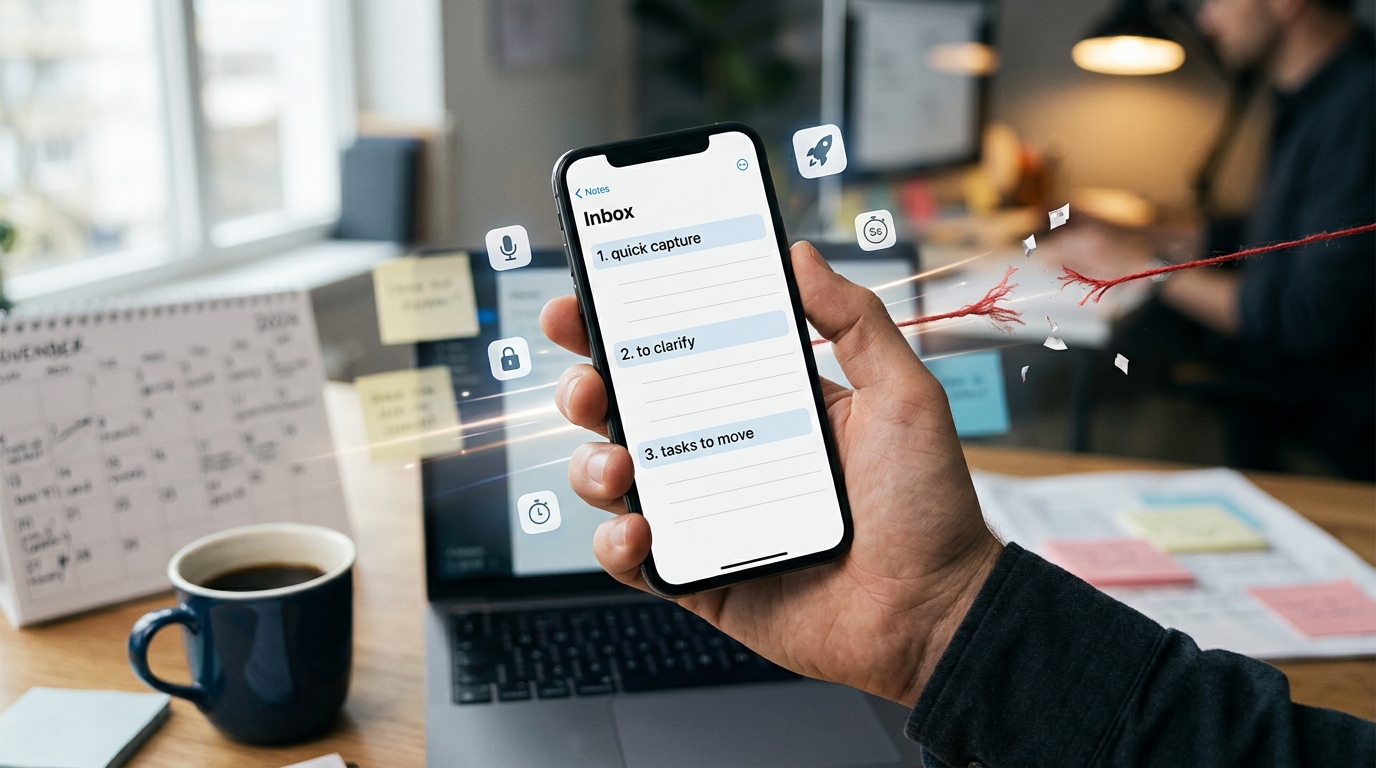
Start with the features that reduce friction at the moment information arrives, because friction is what kills a system. You want fast capture on both desktop and mobile, a global quick-add shortcut that opens a capture box from anywhere without hunting for the app, and search that reliably finds what you typed. The two-second rule applies here: if starting to capture a thought takes more than a couple of seconds, you will not capture it, and the fanciest storage in the world cannot save an empty system (Obsibrain).
For organization and retrieval, you have a menu of options, and each helps in a specific situation while adding overhead in others:
- Tags are flexible and frictionless for flagging notes across categories, and they power filtered search, but too many undermine themselves (more on that later).
- Folders feel orderly, though they force you to decide the one place a note belongs, which is often the wrong question.
- Backlinks connect related notes automatically and shine when ideas cross-reference each other, but they add cognitive load if you are not actually thinking in a network.
- Databases structure repeatable records well, at the cost of setup time that only pays off with real volume.
The honest default here is that strong titles and reliable search beat elaborate folder trees for most people, because you retrieve by searching far more than by browsing.
For follow-through, look for the features that close the loop between an idea and an action. Task and reminder support inside the tool, so a note can become a to-do without a copy-paste handoff to another app. Calendar or project integration, so due dates and meetings live next to their context. Meeting templates, so recurring calls start with last time's decisions already in view rather than a blank page. The connection between I had this idea and I need to do something about it is exactly what gets lost when notes and tasks live in separate tools, so a PKM that keeps them together removes a real failure point.
Finally, check the safety and portability features professionals tend to forget until it is too late: (Ink & Switch)
- Offline access, so a dropped connection does not lock you out of your own notes.
- Cross-device sync, so what you capture on your phone is there on your laptop.
- Export and backup, so your work is never held hostage by one company's servers.
- Privacy controls, so sensitive client or personal material stays yours.
Many tools now offer AI-assisted search and summarization, which can surface a relevant note from a vague query or condense a long meeting into its takeaways. It is genuinely useful when it works, so treat it as a helpful accelerant on top of a solid capture-and-search foundation rather than the reason to choose a tool.
Step 6: Test a Tool With a Real Mini-Workflow Before Committing
Feature lists mislead, because every tool's marketing page describes a tool that works perfectly. The only way to learn how a tool behaves in your hands, with your kind of information, is to run one real project through it. We recommend testing this with one active project, because a hands-on test tells you in a few days what a comparison chart never will.
Run this mini-workflow with an active project you are already working on:
- Add a few real sources: a couple of documents, a link or two, some meeting notes.
- Write several notes and link them to each other and to the sources.
- Ask one question that crosses topics, something that should require the tool to connect two or more of your notes.
- Write one short output from what you have gathered: a summary, an email draft, a decision memo.
- Leave it for a day, then come back and try to retrieve a specific fact. Note how long it takes and whether you trust the result.
While you test, watch specifically for provenance drift, which is a failure that looks harmless until it bites. The tool happily stores your notes and even helps you synthesize a claim, but when you ask which source actually supports that claim, it cannot show you. You end up with a confident statement and no way to trace it back. For anyone doing research, client work, or anything you might have to defend, a tool that loses the link between a conclusion and its source is a liability.
Before you commit, run the export and lock-in test (Dench). Export one note and one source list, then open those files outside the app in a plain text editor or a spreadsheet. If what comes out is clean and readable, your work is portable and you can leave anytime. If the export is a tangle of proprietary formatting, broken links, and unreadable structure, walk away now, because you are being asked to pour years of thinking into a box you can never fully get it back out of.
Step 7: Weigh Friction Against Maintenance Before You Choose
Every powerful feature cuts two ways. It can reduce the friction of getting work done, or it can create a new chore that quietly demands your attention. The central question when choosing is whether a tool's power goes toward your execution or toward its own upkeep.
A small case study makes the trade-off concrete. Picture a freelance consultant juggling four clients. Throughout the day, ideas and follow-ups arrive at bad moments: a fee adjustment to raise with one client, a competitor name to research for another, a reminder to send a revised scope. Each one goes straight into Google Keep in a couple of seconds from her phone, no folder decision required. Once a week, she drops the relevant meeting transcripts, proposal drafts, and background documents for a single client into NotebookLM and asks it questions across the set: what did we agree on the timeline, what objections came up, what still needs an answer. She writes her follow-up email from those answers and closes the loop. That is the whole system. There are no plugins to configure, no schema to design, and no weekly gardening to keep a graph tidy, so nothing rots between clients. For her, this two-tool pairing outperforms a heavier all-in-one setup on the only two things that matter, consistent capture and reliable follow-up, precisely because there is almost nothing to maintain. A modest system you actually use beats a sophisticated one you avoid.
The setup cost is real and measurable. Across mainstream PKM tools, ease-of-use ratings average around 7.4 out of 10, which is manageable, but the outliers matter. Tana, one of the more powerful options, sits near 9 out of 10 for difficulty, and it takes over a week to understand before its workflow feels natural (Tana Stack). That is a week you spend learning the tool instead of using it, so it is only worth paying if the tool's power maps directly onto how you work.
Obsidian illustrates the maintenance trap from the other side. Its core note-taking is straightforward, but its plugin ecosystem invites endless tinkering, and a well-documented pattern is professionals spending more time configuring their setup than working within it. This runs straight into the trust principle from GTD: a system only helps you if you trust it to be current, and you only trust it if it stays current without constant fiddling. The moment maintaining the tool competes with doing your work, the tool has stopped serving the system and started replacing it.
Step 8: Match a Tool Category to Your Kind of Work
Tools cluster into a handful of categories, and matching the category to your work is more useful than chasing the single best app. Prices move often, so treat the figures below as rough, approximate, and worth checking directly before you commit. The main categories:
- Linked notes for people who think in connections between ideas. This category runs from free tiers up to roughly $15 per month for hosted or premium plans (WorldMetrics).
- Visual thinking for people who reason spatially on a canvas. Tools here tend to sit in the low-teens-of-dollars-per-month range.
- Open-source and local-first for people who want to own their data outright. Many options in this category are free to use locally, with your notes stored as plain files on your own machine.
- Database and team-adjacent for people who need structured records and light collaboration. Notion sits here, with a free tier for individuals and paid plans in the low-teens-of-dollars-per-month range, though the honest caveat is that it takes real time to feel productive in. Outline also fits the team-adjacent, docs-focused end of this category: it is fast, has clean editing, and supports self-hosting for sensitive data, but it has no mobile app, no built-in tasks, and requires OAuth just to log in.
- Simple capture for people who prioritize speed and follow-through over structure. Google Keep is free, and Yaranga, which is built around capture speed and the notes-to-tasks loop, keeps pricing modest.
If ownership and privacy are non-negotiable, look at the free, open-source, and self-hosted options, and check three things specifically: whether your notes live as plain local files you can read without the app, whether end-to-end encryption is offered for sensitive material, and whether export is genuinely free and clean rather than a lock-in trap.
Quick guidance by role, since the right category shifts with the job:
- Researcher: linked notes with strong source tracking, so you never lose the provenance of a claim.
- Manager: simple capture with tight task and calendar integration, so meeting takeaways become follow-ups automatically.
- Consultant: capture plus a clean notes-to-tasks loop and easy per-client organization, since your context resets with every engagement.
- Writer: linked notes or visual thinking, to let fragments accumulate and combine over time.
- Engineer: local-first and markdown-friendly, so notes sit alongside code and stay portable.
- Student: simple capture with reliable search, so lectures and readings are findable at exam time without an elaborate setup.
Common PKM Mistakes Professionals Should Avoid
A few predictable errors undo most PKM efforts. Watch for these:
- Choosing a complex tool before defining the workflow. The tool cannot tell you how you work. Decide the habit first, then pick software that fits it, not the reverse.
- Building a beautiful system that is slow to capture into. If your system is too polished to use in the moment, it is it is not a system a monument. The idea you have at 7am dies if opening the app feels like effort.
- Separating notes from tasks with no follow-up process. When the connection between an idea and its next action gets lost in the handoff between two apps, the action rarely happens (David Allen). Keep the loop closed, because saving too much without ever reviewing it is hoarding, and hoarding is not knowing. There is also a real difference between copying a full block of text you will never reread and writing a two-line summary in your own words with a link back to the source, and only the second is retrievable and useful.
- Over-tagging. Fifty tags nobody remembers is as useless as none, because a tag only helps if you would actually think to search for it. That said, do not swing so far the other way that notes have no labels at all, since a handful of consistent, meaningful tags is exactly what makes filtered search work.
- Confusing storage with knowledge. A full archive is not the same as understanding, and leaning only on folders when search and links would surface the right thing faster is organizing for order instead of for recall. Design for retrieval.
Where to Start This Week
If you optimize one thing first, make it capture speed, because a system you can feed in seconds is the one you will actually keep, and every other benefit depends on there being something inside the system to work with. A tool that captures fast but organizes modestly will always beat a beautiful one you avoid opening.
Our recommended first move needs no purchase and no new app. Pick one active project you already care about, and for a week capture everything related to it into a single daily note: meeting lines, ideas, links, loose tasks, all in one place with no filing decisions. At the end of the week, run one honest review where you read back through, promote the real tasks, and file what is worth keeping. Only after that week should you decide whether a dedicated tool would genuinely help, because now you will know what your own capture habit actually looks like rather than guessing.
Watch one signal to know whether any tool is working or quietly failing, and it is simpler than any feature checklist. When a piece of information arrives, do you reach for the tool without thinking? If capturing has become reflexive, the tool has fused with your habit and it is doing its job. If you keep defaulting to a sticky note, a text to yourself, or your own memory, the tool is failing silently, no matter how impressive its feature list looked, and it is time to make capture easier rather than to organize harder.
Ready to conquer your chaos?
Join others who have simplified their tasks and notes with Yaranga.
Get Started for Free